Everyday health · Workstation comfort
A More Comfortable Computer Workstation: Fit the Task, Not a Perfect Posture
Start with the chair, screen, keyboard, and work you actually do. A practical guide to checking fit, making manageable adjustments, and seeking support without treating a desk setup as a cure or a posture test.
AI assisted with drafting, organization, and the original editorial image. Mr.Hotsia reviewed sourcing and clarity only; no clinical review or medical credentials are implied.
Start with the job, not a shopping list
A computer workstation is more than a chair in front of a screen. It is the place where you type, read, use a mouse, join calls, and sometimes handle paper or another device. A setup that suits one task may be awkward for another. Before buying equipment, take a moment to notice what you actually do and where the difficulty appears. This guide offers general principles for adults using computers at home or at work. It is not an individualized workstation assessment, a rehabilitation program, or a promise that changing furniture will resolve pain.
There is no one arrangement for every body
OSHA’s computer-workstation guidance explicitly says that no single posture or arrangement fits everyone. Its approach is to identify opportunities to improve component placement, the working environment, and fit. That is a useful alternative to comparing yourself with a rigid photograph and deciding you are sitting incorrectly. Body size, equipment, access needs, and the task all matter. A picture can illustrate a principle but cannot assess your workstation from every angle. The aim is a setup you can use comfortably and adjust, not holding one impressive-looking position throughout the day.
Check support before chasing a particular angle
OSHA describes neutral positioning in terms of natural joint alignment, with relaxed shoulders, the back supported, and feet supported by the floor or a suitable footrest. These are design considerations rather than a personal prescription for exact angles. In practice, look at how the chair and work surface interact: changing one can affect your reach or support elsewhere. Do not force yourself into a position that conflicts with professional advice or your access needs. If the available furniture cannot be adjusted appropriately, that is an equipment or assessment issue, not a failure of willpower.
Bring the typing task within comfortable reach
OSHA’s keyboard guidance recommends placing the keyboard directly in front, with shoulders relaxed, elbows near the body, and wrists aligned with the forearms. It also considers the mouse and other components rather than treating the keyboard alone. As an illustrative check, notice whether paperwork or an unused device has pushed your main typing area away from you. Moving an unnecessary item may be a more useful first experiment than buying something new. Avoid interpreting the guidance as a rule to brace your arms or hold your wrists rigidly. The task should remain usable, not become a posture endurance exercise.
Place the screen where you can read it
For the monitor, OSHA recommends considering distance, height, viewing clarity, and its relationship to the chair and keyboard. It suggests a position directly ahead, with the top line of the screen at or below eye level, and text readable without leaning forward. Its general preferred distance is twenty to forty inches, or roughly fifty to one hundred centimeters. That range is a starting point, not a diagnosis or a target everyone must match. Screen size, text size, vision, and individual needs can affect what is practical. Ask for appropriate advice if you cannot find a workable arrangement.
A laptop creates a linked-screen-and-keyboard problem
A laptop connects the screen to the keyboard, so raising one also raises the other. HSE’s guidance for prolonged laptop use illustrates separating the keyboard and mouse so the screen can be elevated, or using a separate display. Simply lifting the whole laptop and then reaching up to type may not solve the original fit problem. Any support or riser must be stable and appropriate for the equipment. The principle is to consider viewing and input together, not to build an improvised tower or assume that an accessory labeled ergonomic suits every person and task.
Treat light and text as part of the setup
A screen that is difficult to read can make an otherwise workable setup less useful. OSHA notes that small text may need enlarging and suggests placing the monitor perpendicular to a window. As a planning example, check the screen at the times you normally work rather than judging the setup only when the room is dim. A window or lamp may create a different reflection later in the day. This is a reason to review placement and display settings, not to diagnose eye symptoms from glare or buy a product that promises to eliminate every screen-related problem.
Changing activity belongs in the plan
HSE recommends short, frequent breaks or changes of activity rather than relying only on a longer, less frequent break. The pattern should fit the work. A change should give an opportunity to move or alter posture, rather than repeat the same keyboard task on another device. These principles do not create one universal timer or a requirement that everyone stand. Someone with mobility restrictions or a prescribed plan may need a different option. Consider what variation is feasible and ask for help adapting the work instead of treating a missed reminder as a personal failure.
A reminder cannot reorganize the workload
HSE also notes that break-reminder software can prompt users, but appropriate work planning remains important. A notification cannot reduce a meeting queue, change a deadline, or arrange cover for a task that cannot be left unattended. An illustrative team discussion could identify a suitable point between tasks for a brief change of activity and agree how it will work in practice. The point is to make a workable arrangement, not add another performance score. The guidance is cited for practical principles; this article does not set out employment-law duties for any particular country or organization.
Check each place where you regularly work
If you regularly alternate between home and an office, assess both settings rather than assuming the same adjustments transfer automatically. HSE’s home-working guidance specifically considers both situations and recommends keeping arrangements under review when things change. A chair, desk depth, display, or input device may differ between locations. As a practical example, note which setting creates a particular difficulty and what equipment is available there. Do not photograph private documents or colleagues simply to show the desk layout. The information needed for a useful discussion is often the task, the equipment, and the difficulty—not the contents of your work.
Ask for an assessment, not just an expensive chair
HSE recommends using an assessment to decide whether additional equipment is needed and recognizes that competent advice may come from a trained workstation assessor or an occupational-health professional. A checklist can help organize that process, but it is not a certificate that every possible issue has been ruled out. Ask who can review the findings and whether the equipment can be tried or adjusted before assuming a particular model is the answer. Expensive furniture is not automatically a better fit. Equally, an obvious mismatch should not be dismissed simply because an inexpensive adjustment worked for someone else.
Describe the practical difficulty clearly
A clear description can make a support conversation more useful. For example: “The keyboard is too far away when I have enough room for the screen,” or “The chair arms stop me getting close enough to the desk.” These are illustrative task descriptions, not diagnoses. Explain what you have already tried, whether it helped, and what remains difficult. You do not need to provide a theory about a damaged nerve or joint to ask for an assessment. If you have an existing individualized plan, explain the relevant restrictions through an appropriate private channel rather than posting medical details to a team chat.
Comfort advice is not a diagnosis
Pain, tingling, weakness, or other symptoms cannot be explained reliably by a photograph of a desk. Do not assume they prove poor posture, that they are harmless because you work at a computer, or that a new chair will address the cause. If symptoms persist, recur, worsen, or affect function, seek advice from an appropriate healthcare professional. New severe symptoms or an emergency need prompt care rather than another round of furniture adjustments. This article cannot assess urgency for an individual, identify a condition, recommend a splint, or change a treatment or rehabilitation plan.
Try a small change and review it
For a manageable review, choose one practical issue and make a suitable, reversible adjustment when it is safe to do so. You might clear unnecessary items from the typing area or change a display setting, then check whether the actual task is easier. Keep a brief note if that will help a later assessment; a detailed diary or posture photograph is not required. If one change causes another problem, reassess rather than insisting on the first idea. These are organizational examples, not trial-tested treatment steps. Stop experimenting with a setup that feels unsuitable and ask for appropriate support.
Optional commercial reading is not ergonomic evidence
The existing pages for The Arthritis Strategy, Neuropathy No More, and Overthrowing Anxiety are optional commercial reading related to the site’s wider joint, nerve, and wellbeing topics. They are not the evidence for this workstation guide, ergonomic assessments, or proof that a product treats symptoms. The three links are separate from the official sources below. No purchase is required to review a desk setup or ask for support. Evaluate commercial claims independently and do not substitute a program page for occupational-health assessment, medical evaluation, or an individualized care plan.
The takeaway and general-information disclaimer
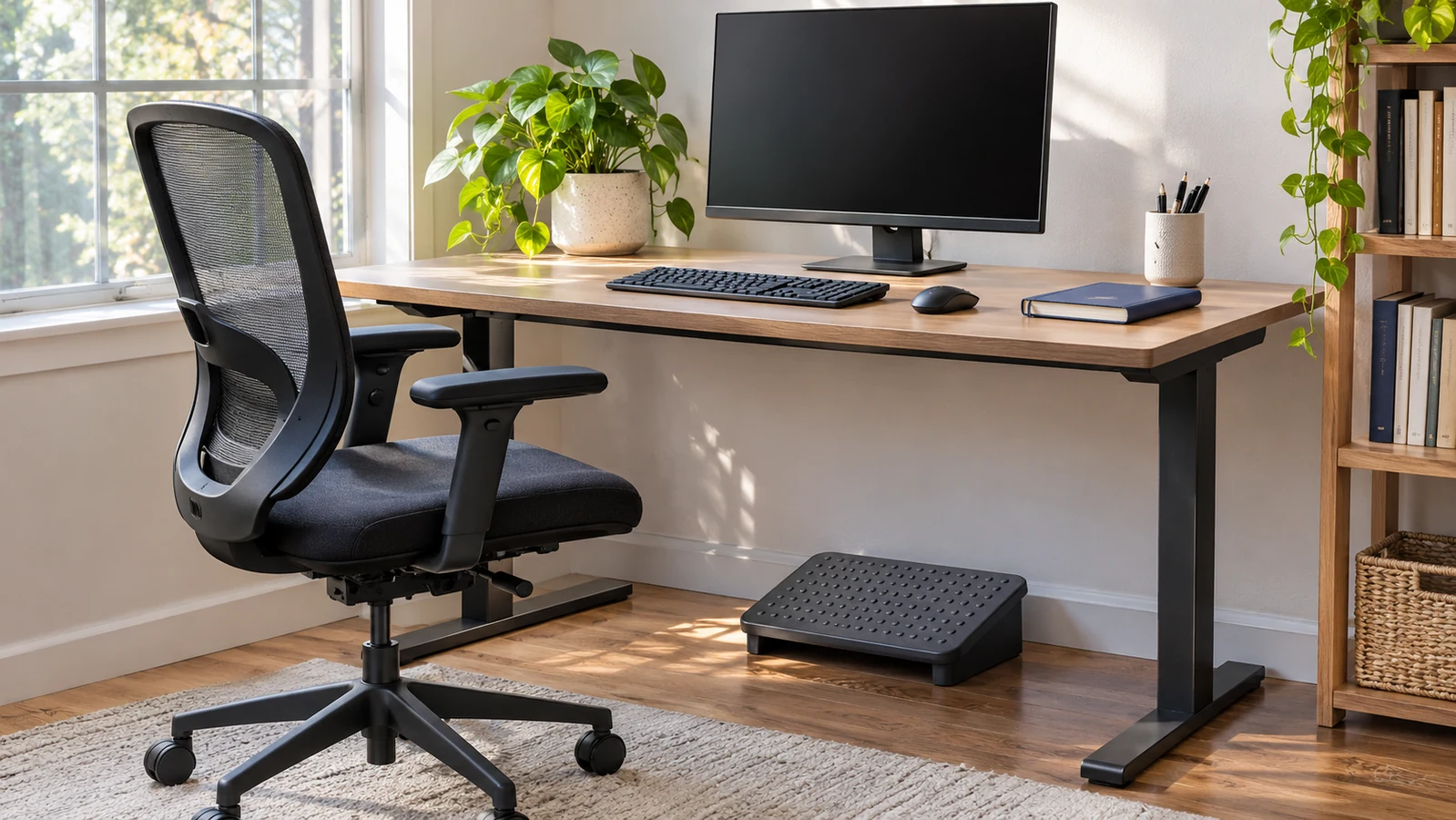
A useful workstation review connects the chair, screen, input devices, environment, and task instead of judging one body position in isolation. Start with the practical difficulty, consider manageable adjustments, and ask for assessment when needed. This article is general health education, not diagnosis, individualized ergonomic treatment, medical advice, or legal advice. AI assisted with drafting, organization, and the original editorial image. Mr.Hotsia reviewed sourcing and clarity only; no clinical review or medical credentials are implied. The image is an illustrative workspace, not a certified setup, and the planning examples do not guarantee comfort, injury prevention, or symptom relief.
Sources and further reading
Medical information was checked against these public health sources on November 20, 2026.
- OSHA — Computer Workstations: overview ↗
- OSHA — Computer Workstations: Good Working Positions ↗
- OSHA — Computer Workstations: Keyboards ↗
- OSHA — Computer Workstations: Monitors ↗
- HSE — Good posture when using display screen equipment ↗
- HSE — Work routine and breaks ↗
- HSE — Working with display screen equipment at home ↗
This article is general health education, not a diagnosis or personal medical advice. Do not change treatment or supplements based on this article. Discuss individual results with a qualified healthcare professional.